In Chapter 1, we covered exploration of Hexes using the two maps: showing you where the opportunities lie. The next step is preparing to take part in an auction.
In this chapter, you’ll learn how to connect your wallet, create your account, and complete the checks that allow you to hold a Hex NFT. You’ll also learn how to set up notifications and a Watchlist, so you’ll never miss a moment when the bidding heats up. Let’s get started.
Step 1: Connect your wallet
The Network Builder platform runs onchain. You need a Web3 wallet to take part in auctions.
- Click Connect Wallet in the top navigation bar.
- Follow the prompts to finish the connection.
Once connected, your menu will show extra sections such as My Bids and Watchlist.
Note: You can explore without a wallet using the Opportunity Map, but to build your watchlist or place a bid, you must proceed with user registration by connecting your wallet.
Step 2: Create or link your World Mobile Account
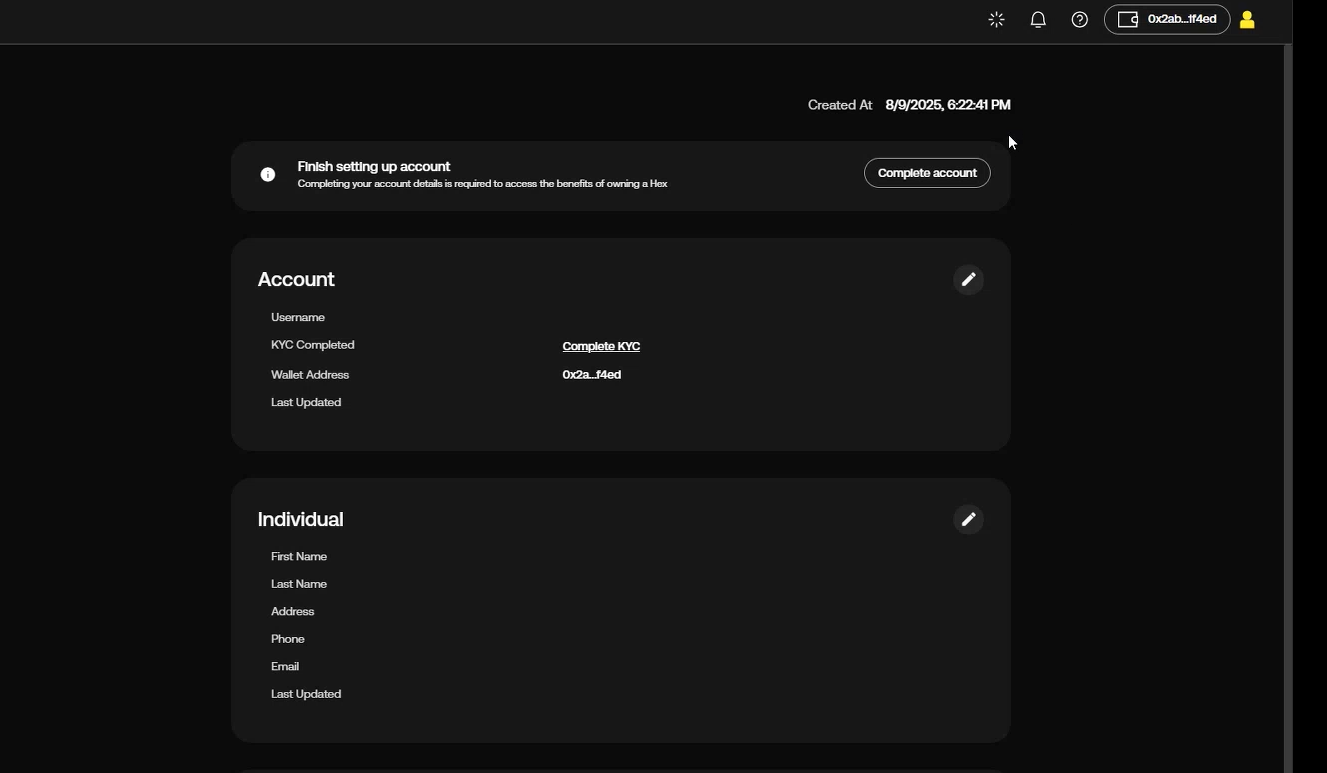
Connecting a wallet is the first step in user registration, but in order to unlock more features of the platform, the user must follow the full onboarding process.
- Click the human outline in the top navigation bar.
- Choose a username.
- If you already have a World Mobile account associated with your email (if you’ve purchased an AirNode, for example), type the email linked to that account to connect it.
Step 3: Individual or Business?
Select the account type that fits your situation.
- Individual – Choose this if you are bidding personally. Enter your first name, phone number, and other basic details.
- Business - Choose this if you want to bid as a company or organization.
Step 4: Save and review your profile
Click Save to create your account. Your account details are editable anytime. Just click back to the human icon and see your profile if you want to:
- Edit your username and contact details
- View your status
A Note on Identity Verification (KYC/KYB)
At this stage, you do not need to complete identity verification. The registration process is focused on getting you set up on the platform.
KYC (Know Your Customer) for individuals and KYB (Know Your Business) for businesses are mandatory verification steps that you must complete after you win your first auction. This post-auction verification is what transitions you to an "Authorized" Hex Operator.
Step 5: Check notifications
Notifications keep you updated during auctions.
- Click the bell icon in the top navigation bar to view alerts.
- You will see updates when you’re in the middle of an auction, such as when you are outbid or when an auction is close to ending.
Step 6: Use your Watchlist
Your Watchlist keeps your desired Hexes in one place.
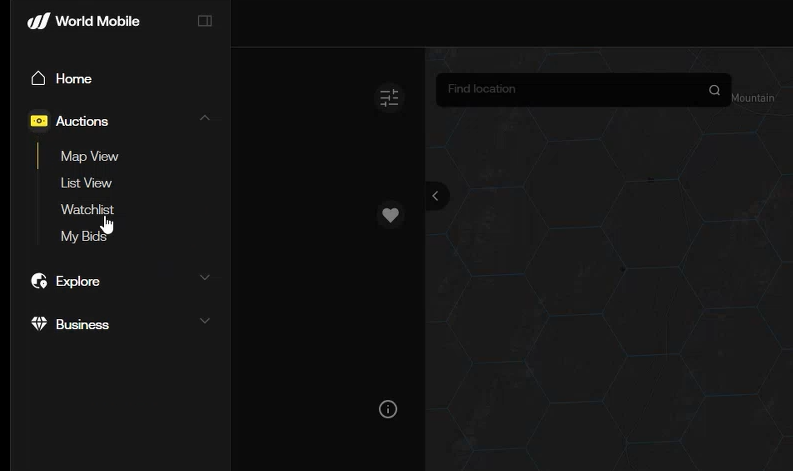
- While surveying the Opportunity Map, you can click the heart icon to add any Hex to your Watchlist.
- Open the Watchlist from the left sidebar to see every watchlisted Hex.
- Filter your Watchlist by location, population density, and other map filters.
- Switch between List View and Grid View for navigational ease.
- Limit results to a radius (fixed to 100km by default) if you want to focus on a specific area.
Closing note
You are set up. Your wallet is connected, your account is created, and your watchlist and notifications are ready. You are equipped to step into the auction.
In Chapter 3, you will learn how to place a bid, manage the auction process, and use the appropriate tools to compete effectively.